The problem with replying in real time
LinkedIn notifications hit at the worst moments — a recruiter pings during a meeting, an investor replies between school pickups, a candidate writes back at 11pm. Real-time replies feel responsive but produce short, low-context messages and constant interruption.
A 3-step reply-later workflow
- Capture — open the message, click Remind me, pick a time (later today, tomorrow morning, next Monday).
- Batch — set 2–3 daily windows where you handle LinkedIn replies in one sitting.
- Close the loop — when a reminder fires, click through to the thread and write the reply you actually wanted to write.
Choosing your reply windows
Two 20-minute windows a day handles most LinkedIn inboxes — one in the morning, one mid-afternoon. Salespeople or recruiters with high volume may need a third. Treat these like meetings on your calendar.
What you need
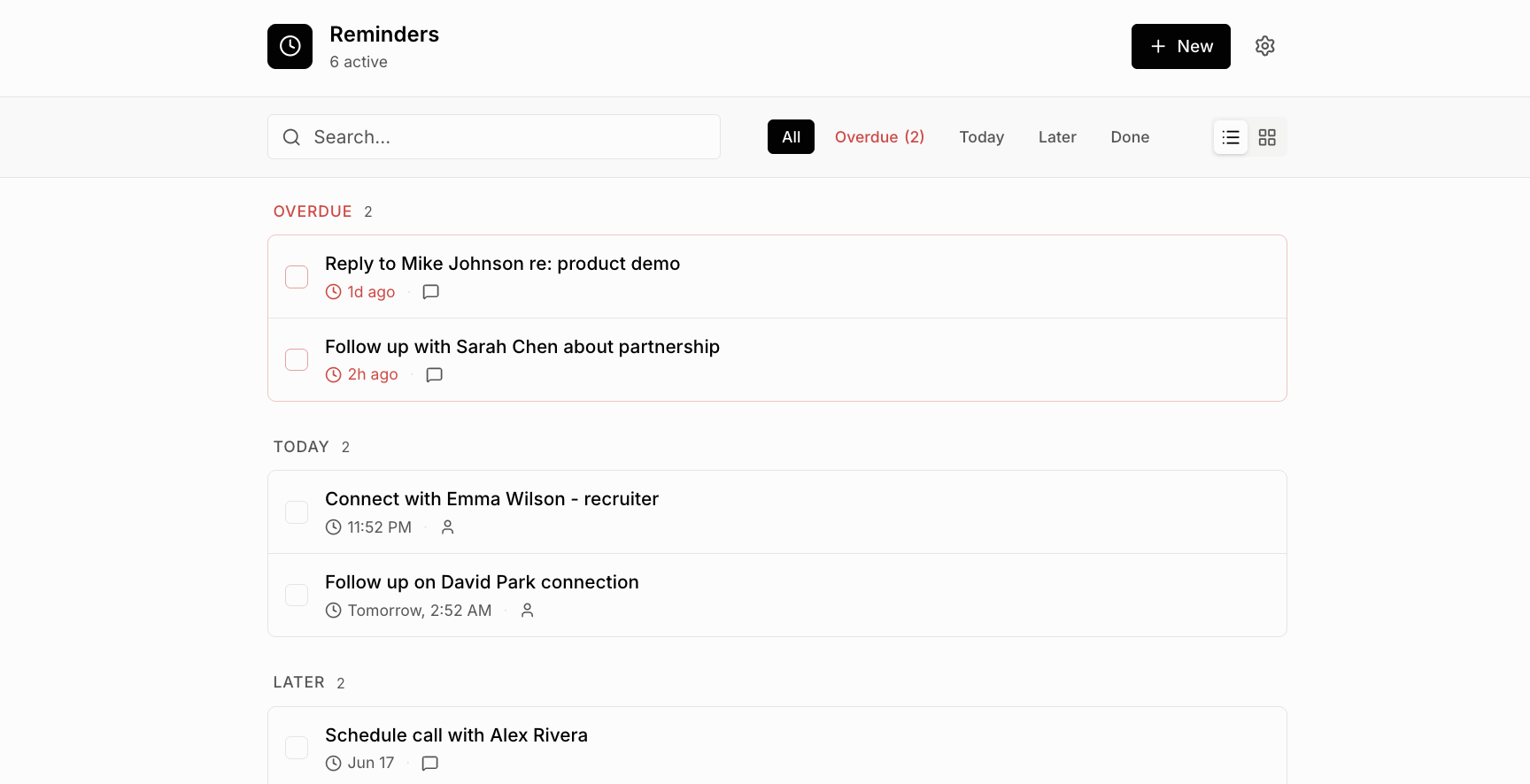
A reminder system that lives inside LinkedIn, so you don't have to copy URLs into a separate app. LinkedIn Reminders does exactly this — every reminder includes a direct link back to the message thread.
Frequently asked questions
How do I mark a LinkedIn message to reply later?
LinkedIn's built-in flags don't surface reminders at the right time. Use a reminder extension to attach a follow-up date to the conversation, and the message comes back to you when you said you'd handle it.
Is batching LinkedIn replies a good idea?
Yes for anyone who lives in LinkedIn DMs — recruiters, founders, salespeople. Batching reduces context switching and forces you to write thoughtful replies instead of one-liners.